Direct Data Export v2 provides automated access to generated export files containing employee engagement data. After setting up a recurring Direct Data Export connection in Creator Studio, you can access generated files by SFTP or through the Data Exports API.
The API does not query live campaign, user, or activity records directly. Instead, it lets you list generated export files and retrieve temporary download URLs for those files.
Refer to this knowledge base article for general overview on the Direct Data Export v2 feature SFTP guidance and the Direct Data Export v2 feature.
Use the Data Exports API to list generated export files and retrieve temporary download URLs for export files of a given type: campaigns, users, or activities.
- Ensure you've setup an initial recurring connection in Creator Studio.
- Ensure you've gained an access token with the
data_exports.readscope. - Use the correct regional base URL for your program.
- Downloaded export files are GZIP-compressed even if the downloaded file name ends in
.csv. You need to rename it from.csvto.csv.gz, then unzip it before opening the CSV.
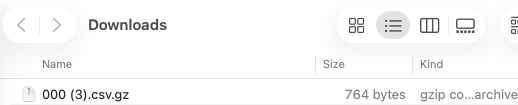
- Export files are generated on the recurring connection schedule. A file is only available for a scheduled run if there was data to include.
- Presigned download URLs are temporary. The response includes presigned_url_ttl_seconds, which is typically 900 seconds.
- There may be a delay after the recurring connection is initially set up before export files are available.
The Data Exports API returns temporary download URLs for generated CSV export files. Customers can process these files in the tool or data pipeline of their choice.
For example, customers may download the files and load them directly into a BI tool, or first ingest them into a data warehouse such as Snowflake before connecting reporting tools such as Tableau or Power BI.
Firstup does not provide a dedicated connector for these endpoints. Customers are responsible for downloading, unzipping, storing, transforming, and loading the exported files into their own analytics environment.
The Data Exports API retrieves generated Direct Data Export v2 files only.
It does not:
- Generate a new export file on demand.
- Retry or regenerate failed files.
- Create custom reports.
- Return charts, dashboards, or aggregated metrics.
- Filter exports by campaign, user, activity, column, or custom date range.
- Let you select a subset of rows or columns.
- Apply an API row limit to the downloaded file.
To retrieve a file for a specific generated timestamp, use the list endpoint to find the file ID, then use the specific file endpoint to retrieve its presigned download URL.
There are three endpoints:
- Get the latest export file for a given type - Returns metadata and a presigned download URL for the most recent export file of the specified type within the caller's program. A given type is one of campaigns, users or activities.
- List all available export files for a given type - Returns a list of all export files for the specified type within the caller's program. Each file entry includes an opaque file ID that can be used with the show endpoint to obtain a presigned download URL. Again a given type is one of campaigns, users or activities.
- Get metadata and download URL for a specific export file - Returns metadata and a presigned download URL for a specific export file identified by its file ID. The file ID is obtained from the list exports endpoint.
Endpoint
- To get the latest export file of a type, replace
type_namewith one ofcampaigns,users,activities. - Open the returned
presigned_urlto download the latest file. - Open the destination folder, and find the
.csvzip file. - Rename the file type from
.csvto.csv.gzif required. - Then you can unzip and open the file. This gives you the export data from the latest generated file for the selected type.
Example request
GET /v2/data_exports/type/campaigns/latest
Example response
{
    "data": [
        {
            "presigned_url": "https://customer-direct-data-download.sexampleexampleexample.sftp_exports/unload_campaign_data_v2/program_id%3D23552/generated_at%3D2026-05-14-16/activity_type%3Dcampaign/000.csv?X-Amz-Algorithm=AWSvuhhdbe873gyhbcchwbiucegduvd3ddefd&X-Amz-Expires=900&X-Amz-Security-Token=IQoJb3JpZ2luX2VjEKb%2F%2F%2F%2F%2F%2F%2F%2F%2F%2FwEaCXVzLWVhc3QtMSJHMEUCIQCWkROIJ739RkFA7UouFHiyc8NrMGcooWph5i9%2BMM7wrAIgVBQDhTGkHF%2BwwzgvNGagkw06ZyLhmmTyf47FTTmuJJUqugUIbxAAGgw2NDQ5MjE1NTk2NDUiDNDaZfZPce9%2F7gVB5iqXBUUqz7SRdkgXoCTxnTwgRw7xNI8bxbbSCePaMJphotkAQ83R%2BncurvD6Brdjkc553tGxrQygzKhMBUpjN%2FEMhdhcdjhruyfbdfhfhbfhrfejdeamz-checksum-mode=ENABLED&x-id=GetObject",
            "presigned_url_ttl_seconds": 900,
            "file_name": "000.csv",
            "size_bytes": 764,
            "checksum_function": "CRC64NVME",
            "checksum": "up9EJhEZcIA=",
            "generated_at": "2026-05-14-16"
        }
    ]
}Endpoint
- To list the available export files of a type, replace
type_namewith one ofcampaigns,users,activities. - From the response, copy the file’s id. This is an opaque export file ID. It identifies a generated export file for the selected type and is not a campaign ID, user ID, or activity ID. Use this file ID with GET /v2/data_exports/type/{type_name}/files/{file_id} to retrieve file metadata and a temporary download URL.
Response example
{
  "data": {
    "files": [
      {
        "id": "dXMtZWFzdC0xLXByb2Qtc2Mvc2Z0cF9leHBvcnRzL3VubG9hZF9jYW1wYWlnbl9kYXRhX3YyL3Byb2dyYW1faWQ9MjM1NTIvZ2VuZXJhdGVkX2F0PTIwMjYtMDUtMTQtMTIvYWN0aXZpdHlfdHlwZT1jYW1wYWlnbi8wMDAuY3N2",
        "file_name": "000.csv",
        "generated_at": "2026-05-14-12",
        "base_name": "unload_campaign_data"
      }
    ]
  }
}Endpoint
- To retrieve a specific generated export file, replace
type_namewith one ofcampaigns,users, oractivities. - Replace
file_idwith the ID previously returned from List all available export files. Treatfile_idas opaque. Do not decode it or replace it with the decoded path. When building the request URL in code, URL-encode the file ID before inserting it into the path. For example, in JavaScript: encodeURIComponent(fileId). - Send the request.
- From the response, open the returned
presigned_url. This URL downloads the generated export file. The API response itself contains file metadata such as file name, generated timestamp, file size, checksum, and URL expiry. - Open the destination folder, and find the
.csvzip file. - Rename the file type from
.csvto.csv.gzif required. - Then you can unzip and open the file. This gives you the export data from the selected generated file.
Example request
GET /v2/data_exports/type/campaigns/files/dXMtZWFzdC0xLXByb2Qt3YyL3Byb2dyYW1faWQ9MjM1NTIvZ2VuZXJhdGVkX2F0PTIwMjYtMDUtMTQtMTIvYWN0agfrt4EDFDFDFfefeffTHTHTHSDSDFT%4t4tnffW1wYWlnbi8wMDAuY3N2
Example response
{
    "data": [
        {
            "presigned_url": "https://customer-direct-data-download.s3D%2F20260515%2Fus-eBVnNWg8gpZjx3yxO83irCN%2Bxttt%2B5b%2ByffSqX8FXhRnWtfwLqanklYh%2F4mTbZ9QioLNtvW7hZ%2BVKTnsUZs4n5AdI%2BDpl%2FH3m1XSvo2sqYt6uVdySC9bjJYBEmK3WyCz6De6mxrhN%2F23nASW%gfgfhfhfgdEXAMPLE%2FjmSew451a8cF14A2QzEPBgggP%2B9GmxaXkSAGT4iBq4erS8FkVL5%2F%2FHOA3div9WmImwd2M1No0ZfH7BoHmSIIinCPKIkr3JnLt4fre%2B3bqqwkZkjWyGrfnw67WJ9FekN4Na0v6zrjNXbs2M7dBt90NtfiuDvGxeBPGvOT%2BmFhOqL5gBR2%2Fj8F3Ec%2BnAa2cfnxwNXvMM4EHxjEWnbfF0oPyHXvt5z6FYLWLMqJInuL8ys1uJdUL1D2YppmcxcJMMloSNkgyI5uZQM6nAXPRyBPaF8jo5a7BdJCfyRyFkdapOxkXuiL4VlK3GKN5h1p1CGXpd0Y68NEFsipCa6jvKVVKaYOt6vtkcfYbFyS8QHaSzzd4pK8PnIsEX1ZsgAUkTex8tYtXZjHSZsGtqp4BFxMj9D2B1JHsoEXSJGAdMzkF3MaCf8sgGZBqdIAlKENSrS2e%2B7%2FL53Is2jKKXw1JdzmN9WokbimTOmdXw3Bd3Z%2FE%2FOuRZ0BN4LzrU4CPWRcVvn87JWMhbfBCq2hzAV42UpmZeHXvTjAtTEDCRhpzQBjqxAQf%2FawQvcbNx%2Bv7wiIaz5xbtuaTmtphpLep9bWUrLvpqxoS%2BpHcs1NwCtxDiX5g6byWGeHIkJACVzFOBN2D5NtxoyPBUN%2B5%2B%2BrOJSrcrKQjugI%2FLnfW5bH0S1pHxo7Bhhj%2BZVPjWpe4fWBomAi2MF1VTv1hVK4iK8bw3KYgFaayO%2BXSawGBNbaJfqt1FPqAdf%2Br9gif8jj6g%3D%3D&Signature=04ef8a53ea513df66dcf98cd5191beec5d29cb6deec9d51ab5adfc3dcda8b160&ignedHeaders=host&x-amz-checksum-mode=ENABLED&x-id=GetObject",
            "presigned_url_ttl_seconds": 900,
            "file_name": "000.csv",
            "size_bytes": 582,
            "checksum_function": "CRC64NVME",
            "checksum": "ctYA1jSC2TY=",
            "generated_at": "2026-05-14-12"
        }
    ]
}A 404 does not always mean the endpoint path is wrong. It can also mean no export file exists for the requested type/program, or that the requested file_id does not belong to the caller’s program or selected type_name.
The following table outlines possible errors. You can also ask our AI agent for help. Give it your endpoint, error code and error message.
| Scenario | Expected status | Resolution |
|---|---|---|
No Authorization header | 401 | Add Authorization: Bearer <access_token>. |
| Invalid or expired token | 401 | Generate a new access token. |
Token missing data_exports.read scope | 403 | Use a token with the data_exports.read scope. |
Invalid type_name, for example badtype | 400 | Use campaigns, users, or activities. |
Non-existent file_id | 404 | Re-run the list endpoint and use a valid file id. |
file_id does not belong to the selected type_name | 404 | Use the same type_name used to retrieve the file ID. |
file_id does not belong to the caller’s program | 404 | Confirm the token and file ID belong to the same program. |
| Latest requested when no files exist for type/program | 404 | Wait for a scheduled export run with data, or confirm the recurring connection is configured. |
| Presigned URL expired | 403 from file download URL | Call the API again to get a fresh presigned_url. |