The following use cases are examples of using our Notification Center endpoints in a UI setting with a front-end user.
The Notification Center offers users a centralized hub within their employee experience to effortlessly access and manage notifications. It alerts them to new campaigns and journeys, and highlights post activity and important items requiring attention.
The Notification Center replaces the Assistant Inbox
Refer to our knowledge base article for an indepth look into its functionality.

Notification Center Authorization and Authentication
Notification Center endpoints use user-based authentication JWT authentication or OAuth as a user, so that each request runs in the context of a specific user.
Tokens issued this way include scopes such as notification_center and feeds.read, which allow a client to fetch and manage a user’s notifications.
Mobile Push Notifications
For mobile push notifications, user sessions and notification delivery are handled separately. Even if an SSO or app session expires (for example, after 24 hours), push notifications continue to be delivered as long as the user remains logged in on the device.
To access Notification Center endpoints again after a session expires, the user must re-authenticate through OAuth as a user.
All of these get user notification examples use this same GET endpoint, but each have a different filter applied.
These GET examples link to the user by the auth token.
Endpoint
A user wants to browse their past notifications without cluttering their view with new ones.
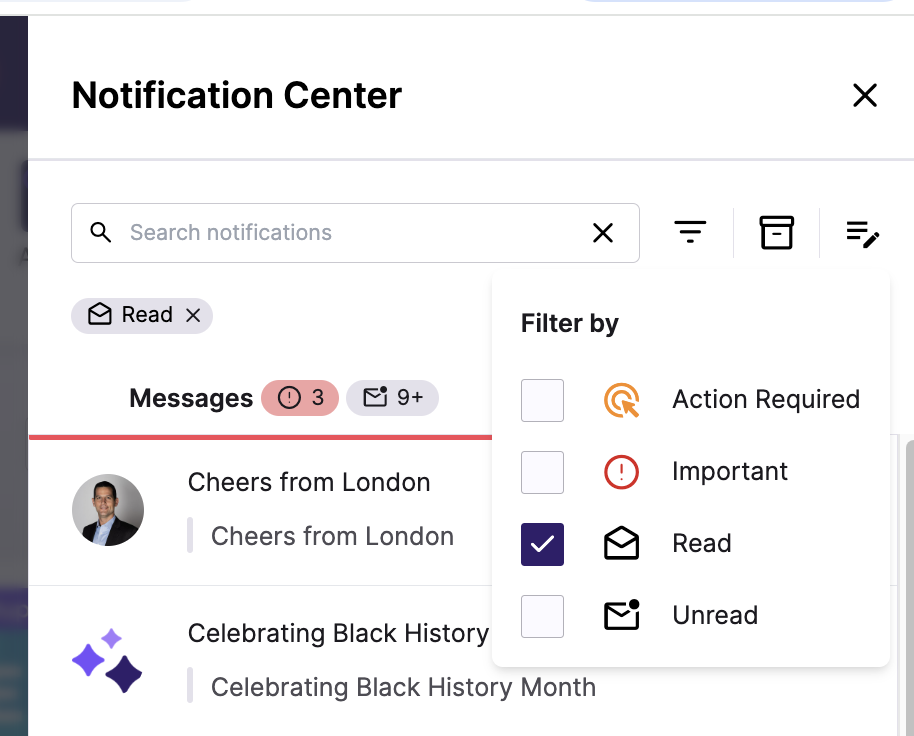
In this example, the UI may have a read / unread check-box to filter their notification list. This endpoint filter allows this.
- Front-End: A “View Read Notifications” button filters out unread ones.
- Back-End: A system logs which notifications users engage with for analytics.
Example Request
`GET /notificationcenter/notifications?filter.read=true`A user only wants to see notifications they haven’t checked yet when selecting their notification icon.
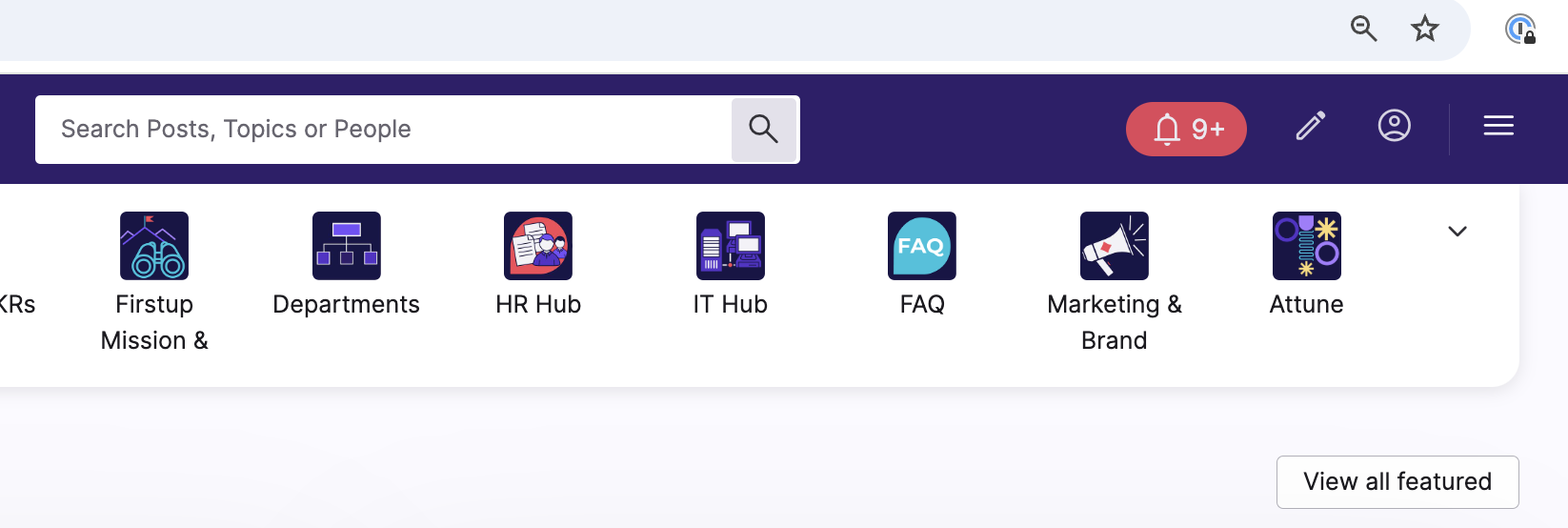
- Front-End: A badge counter shows only unread notifications.
- Back-End: An auto-reminder service fetches unread notifications to re-alert the user.
Example Request
`GET /notificationcenter/notifications?filter.unread=true`
A user, such as a line-manager needs to respond to notifications that require input (e.g., confirming an order, approving PTO request, etc.).
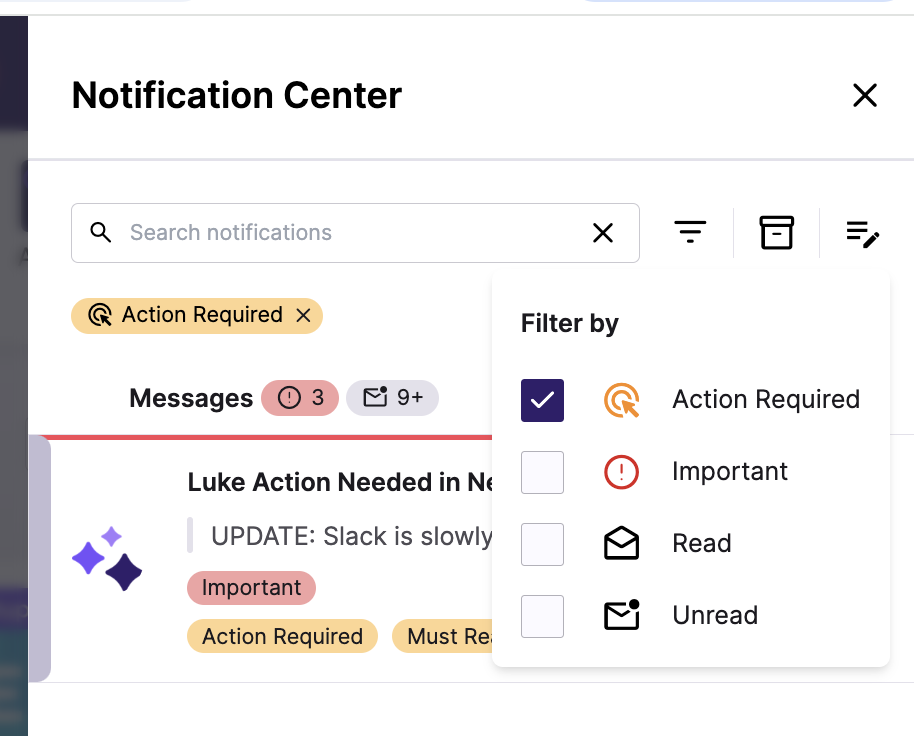
- Front-End: A separate “Needs Action” tab helps users quickly respond.
- Back-End: An automation checks pending notifications and triggers reminder emails.
Example Request
`GET /notificationcenter/notifications?filter.action_required=true`
Campaigns can be marked as important by the content creator or publisher (refer to this article). A user wants to see these important campaigns only.
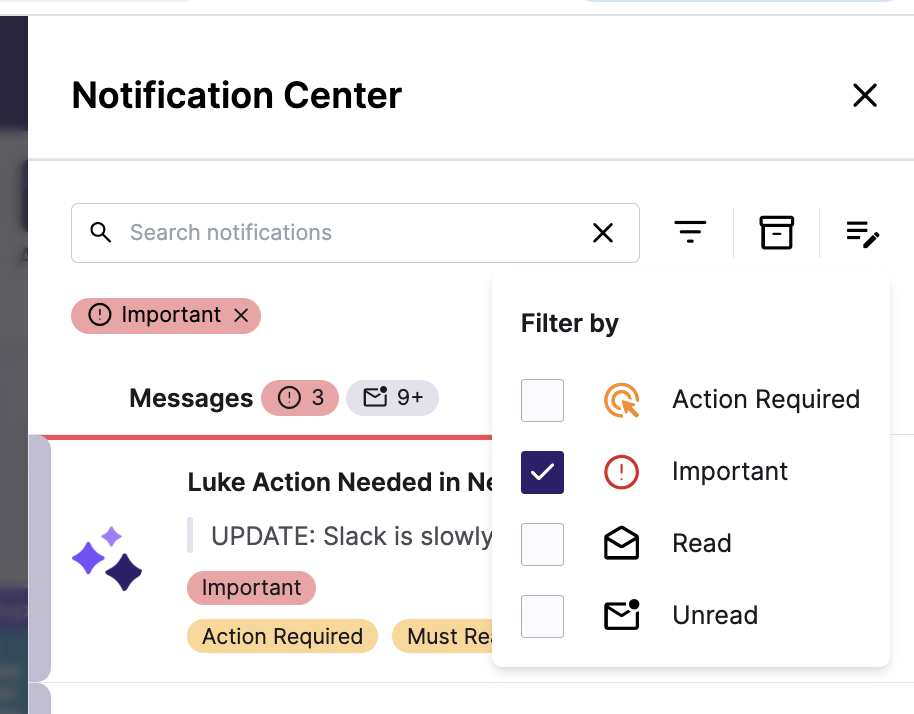
- Front-End: A “Show Important Only” toggle highlights urgent notifications.
- Back-End: A system monitors high-priority alerts for customer service escalation.
Example Request
`GET /notificationcenter/notifications?filter.important=true`
The Notification Center also offers users to place to find their interactions with other users on the platform.
Activity types:
- @mentions in post
- Views on your posts (for both Studio content and user-generated content that you’ve published and set yourself as the author for)
- Third-party integration activity
- Likes on your comments
- Likes on your comment replies
- Replies to your comments
- Comments on your posts
- Likes on your posts
- @mentions in comments
A user wants to browse their activity without cluttering their view.
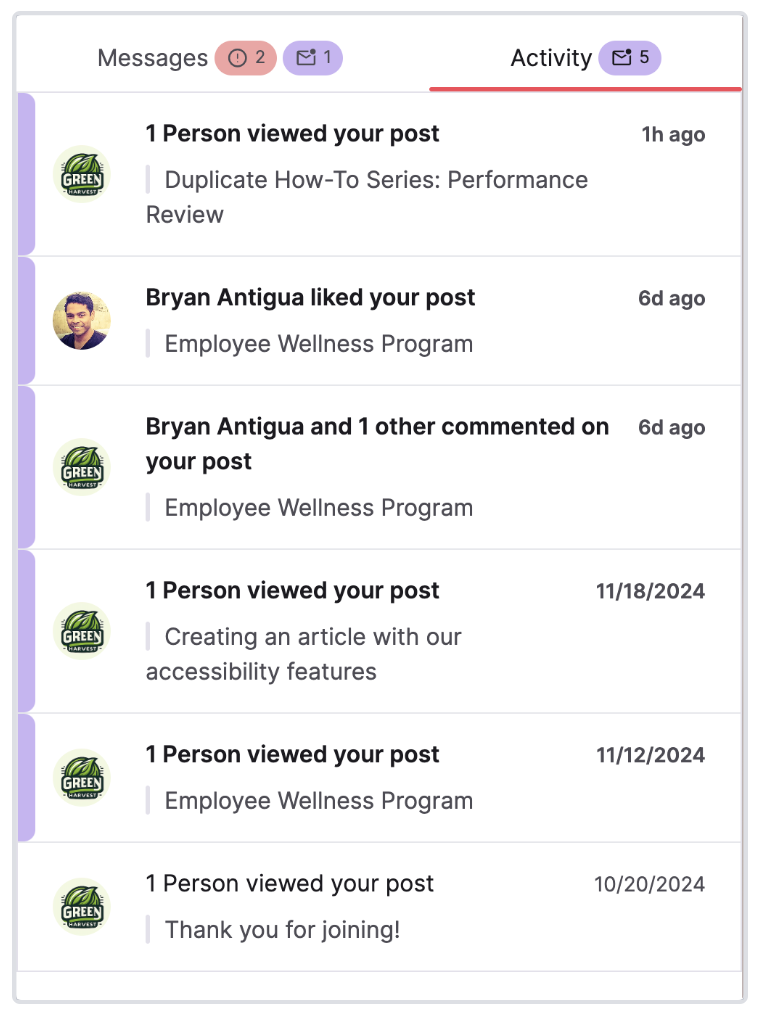
- Front-End: An “Activity” tab filters out Messages.
- Back-End: A system logs which acitivity notifications users engage with for analytics.
Endpoint
Example Request
`GET /notificationcenter/notifications?filter.activity=true`The total notification count uses a separate endpoint.
Display the total count of notifications with a bell icon in your application.
- Front-End: Responsive updates for users to see their total number of notifications.
- Back-End: Getting this total count without the actual notifications reduces API payload size.
Endpoint
Example Request
`GET /notificationcenter/notifications?filter.activity=true`A user opens the Notification Center and clicks on a notification. Next time the user opens the Notification Center, that notification is marked as read.
- User clicks on Notification Center. Their notifications are listed. This sends a
GETrequest to list their notifications. - The user clicks on a notification in the front-end UI. Clicking this notification passes the
"notification_id". - A
PUTrequest is sent to update the notification as read.
Endpoint
Example Request
`PUT /notification_center/notifications/1/read
Authorization: Bearer <auth_token>
Content-Type: application/json`
Example Response
`  "message": "Notification marked as read",
  "notification_id": 1,
  "acknowledged": true`